


Ever felt frustrated scrolling through endless channels for your favourite show? You deserve a streaming experience that’s seamless and yours. Imagine sitting down after a long day, clicking your remote, and finding your favourite content right there.
This tivimate iptv guide is here to help you set up easily. We’ll show you how to add IPTV to TiviMate, making sure you get the most from your subscription. Follow these simple steps and navigate your interface with confidence.
We aim to make setting up your device easy. Once you’re done, you can enjoy top-notch entertainment right away. Let’s turn your living room into the ultimate media centre today.
Key Takeaways
- Learn the precise steps for a smooth streaming setup.
- Master the interface to find your favourite shows faster.
- Ensure your subscription works perfectly with your device.
- Gain confidence in managing your digital media library.
- Enjoy a personalized viewing experience tailored for 2026.
Understanding the TiviMate IPTV Experience
TiviMate is a top choice for IPTV fans in Canada. It shines on Android devices with its intuitive design and robust feature set. This tivimate iptv tutorial will show you why it’s a favorite for live TV management.
The app’s interface is designed for easy use and customization. You can quickly switch channels, tweak display settings, and manage your media library. It feels like a professional-grade television system in your home.
The app organizes your content neatly, unlike other players. You can sort by genre or create custom groups. This tivimate iptv tutorial explains how it fits your preferences. Managing your favorite shows and live sports is effortless.
Preparing Your Device for TiviMate Installation
A successful tivimate iptv setup starts before you open the app. Make sure your hardware and network are ready. This avoids future problems.
By following these steps, your device will handle high-definition streams well. You won’t face stuttering or crashes.
Checking Hardware Compatibility for Android TV and Fire TV
Not all devices are the same. For a smooth tivimate iptv setup, your device needs 2GB RAM and a quad-core processor. This ensures the interface is fast while you browse.
Older Fire TV Sticks or budget Android boxes might lag. Clearing background apps before using your media player helps. This frees up resources.
The table below shows the best hardware for a great experience.
| Device Type | Recommended RAM | Processor | Storage Space |
|---|---|---|---|
| Entry-Level | 1 GB | Dual-Core | 4 GB Free |
| Mid-Range | 2 GB | Quad-Core | 8 GB Free |
| High-End | 4 GB+ | Octa-Core | 16 GB+ Free |
Ensuring Stable Network Connectivity
Even top hardware struggles with a bad internet connection. A wired Ethernet connection is best. It avoids Wi-Fi interference common in Canadian homes.
If Wi-Fi is your only option, place your router in an open area. Use the 5GHz band to cut down on buffering during busy times. These steps will prepare your device for a great tivimate iptv setup.
How to Add IPTV to TiviMate Using M3U Playlists
Learning how to add IPTV to TiviMate with your M3U link opens a world of content. This method is the most popular for organizing your digital entertainment. Just follow a few simple steps to get your service running on your device.
Locating Your M3U URL from Your Provider
To start adding IPTV to TiviMate, get the connection details from your provider. They usually send this info via email after you buy a subscription. Look for a link ending in “.m3u” or a specific URL in your account dashboard.
Keep these details safe, as you’ll need them for setup. If you can’t find the link, check your provider’s support portal or contact customer service. Having the URL ready is key to creating your TiviMate IPTV playlist.
Navigating the TiviMate Add Playlist Menu
With your URL in hand, open TiviMate on your Android TV or Fire TV. Go to “Settings” by tapping the gear icon in the top right corner. Then, choose “Playlists” and “Add Playlist” to start.
The app will ask you to pick the playlist type. Select “M3U playlist” for the standard setup. This interface is easy to use, so you can set it up without trouble.
Inputting Credentials and Managing Playlist Settings
Enter your M3U URL carefully into the field. You might also need to add an EPG URL if your provider offers it. Double-check your typing to avoid connection errors.
After entering the URL, name your playlist to keep things organized. Click “Next” to fetch your channels and categories. The table below shows the key settings to manage during setup:
| Setting Name | Purpose | Recommended Action |
|---|---|---|
| Playlist URL | Connects to your provider | Paste exact M3U link |
| EPG URL | Loads channel guide data | Enter if provided |
| Playlist Name | Identifies your service | Use a clear, custom label |
| Auto-Update | Refreshes channel list | Enable for current data |
Configuring Xtream Codes for Seamless Integration
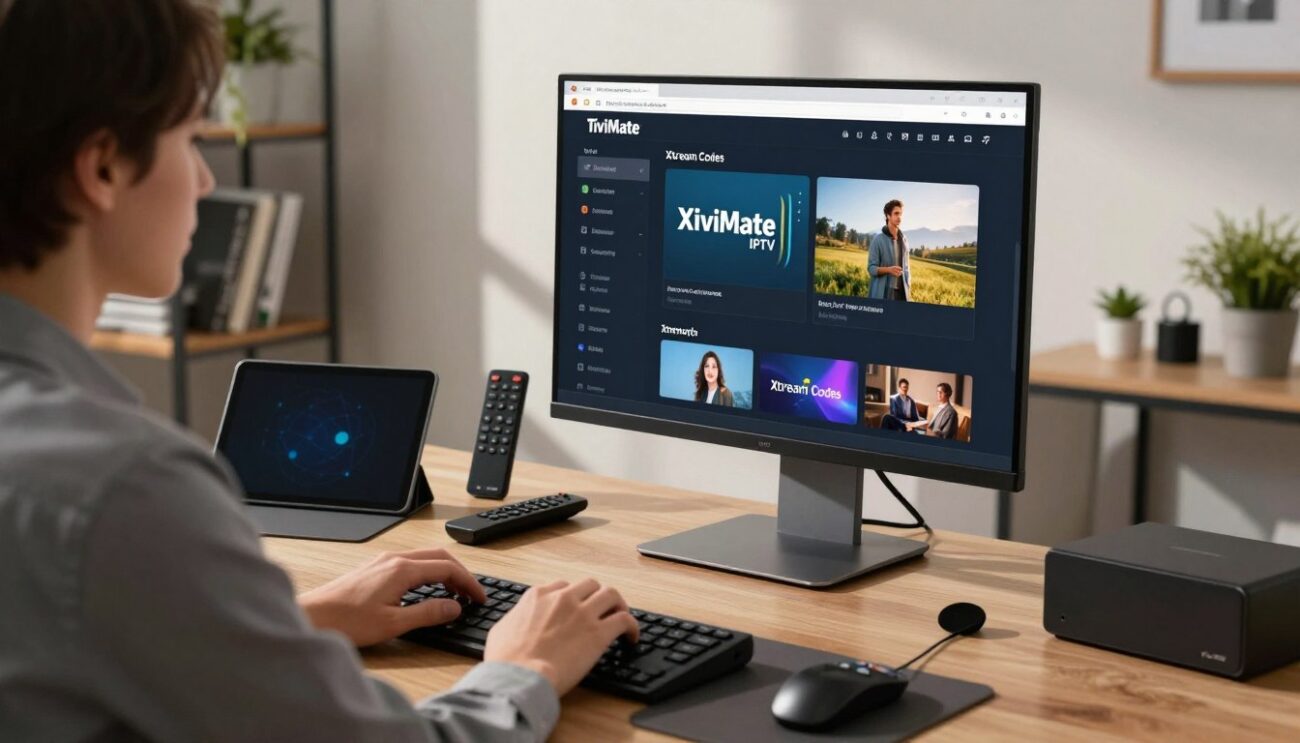
Xtream Codes are a better way to manage your streaming content than basic playlist files. They are preferred by power users because they handle complex data well. This ensures a smooth tivimate iptv integration that feels like it’s part of your device.
Why Xtream Codes Offer a Better User Experience
Using Xtream Codes means your media library is automated. Unlike M3U files, it pulls your Electronic Program Guide (EPG) data from the server. You won’t have to search for external XML links to keep your schedule up to date.
This method also supports native catch-up features without extra steps. It syncs your channel categories and stream information instantly. This automation is why many Canadians choose it for their home entertainment.
Entering Server URLs and Login Credentials
To start your tivimate iptv configuration, go to the “Add Playlist” menu in the app. Choose “Xtream Codes” from the list. Then, enter the details your service provider gave you.
Put in your server URL, username, and password carefully. Remember, these are case-sensitive. After hitting login, the app will check your account and fill your channel list.
Optimizing EPG and Catch-up Settings
After setting up, check if your program guide is working right. Most users find the default settings perfect. But, you can refresh the EPG if you see missing info. This keeps you up to date with local news and sports.
Also, make sure catch-up is enabled for your channels. This tivimate iptv configuration step lets you watch shows you missed. By tweaking these settings, you control your viewing schedule and content library.
Managing Your IPTV Channels and Categories
After adding IPTV to TiviMate, you might feel overwhelmed by the channel list. It’s common to have hundreds of stations, many you’ll never watch. Organizing your tivimate iptv channels can greatly improve your viewing experience.
Customizing Channel Groups and Favorites
You can make a personalized dashboard by grouping your favorite content. This lets you quickly access sports, news, or entertainment networks you love.
- Long-press on any channel to open the context menu.
- Select the “Add to Favorites” option to pin it to your top list.
- Create custom groups by navigating to the playlist settings to categorize content by genre or language.
Personalizing your groups makes navigation faster. You won’t have to scroll through endless lists to find your favorite Canadian news or sports.
Hiding Unwanted Channels for a Cleaner Interface
If your provider includes categories you don’t like, you can hide them. This keeps your interface clean and ensures you only see content you enjoy.
To hide specific channels or categories, go into the “Manage Channels” menu in settings. There, you can toggle the visibility of any item. This simple step keeps your TV screen professional and clutter-free.
Sorting Channels by Name or Number
The default order from your service might not be what you prefer. You can sort your tivimate iptv channels in a way that suits you.
You can sort by:
- Name: Perfect for finding specific networks alphabetically.
- Number: Ideal if you prefer a traditional cable-style layout.
- Custom: Allows you to manually drag and drop channels into your preferred order.
By managing your channel list, you tailor your setup to your needs. A well-organized interface is key to a smooth and enjoyable streaming experience.
Enhancing Your Viewing with Advanced TiviMate Features
TiviMate offers more than just streaming. This tivimate iptv tutorial will show you how to get the most out of your device. You’ll learn how to set it up just the way you like it. With these tips, your living room can become a top-notch media center.
Setting Up Multi-View for Sports and News
The Multi-View feature is a must for sports and news fans. It lets you watch multiple streams at once on one screen. It’s great for watching several games at once during a big sports weekend.
To use it, just press the select button on your remote while watching a channel. Then, pick “Multi-view” and add more channels to fill your screen. It’s a smooth way to keep up without constantly switching channels.
Utilizing the Recording Functionality
Don’t miss your favorite shows with TiviMate’s recording tools. It’s easy to save live content to your device or a network drive.
Make sure you have enough storage before recording long shows to avoid playback issues.
To record, go to the EPG menu and pick the show you want to save. The app will take care of the rest in the background. It’s perfect for those with busy lives who want to watch shows on their own time.
Adjusting Audio and Subtitle Preferences
Customizing your audio and subtitle settings makes every show better. You can switch between languages or turn on closed captions easily.
- Audio Tracks: Choose from different languages or sound formats.
- Subtitle Sync: Adjust the timing if the text and speech don’t match.
- Default Settings: Set your preferred language for all future streams.
With this tivimate iptv tutorial, you can easily find these options in the player menu. Taking a little time to set these preferences will make watching shows much more comfortable.
Troubleshooting Common TiviMate IPTV Configuration Issues
If your channels stop loading or the guide looks empty, don’t worry. Most issues are easy to fix. Even with a perfect tivimate iptv configuration, you might face technical hurdles. Follow these simple steps to solve most problems and enjoy your favourite content again.
Resolving Playlist Loading Errors
When your tivimate iptv playlist fails to load, first check your internet connection. Make sure your device is connected to a stable network. Intermittent drops can cause authentication failures.
Also, double-check that your M3U URL is typed correctly. A single missing character can block the app from reaching your provider’s server.
If the URL is correct, the problem might be with your service provider. Check their status page or contact their support team. Sometimes, deleting the playlist and re-adding it can fix cache errors.
Fixing EPG Data Mismatches
An empty or incorrect Electronic Program Guide (EPG) is frustrating. To fix this, go to the EPG settings and manually trigger an update. Ensure your device’s time and date settings are accurate to avoid time zone mismatches.
If the data is wrong, check that your EPG URL is active and linked to your playlist. Try clearing the EPG cache in the settings menu. This often fixes synchronization issues instantly.
Addressing Buffering and Stream Quality Problems
Buffering usually means a network speed issue or high traffic on your provider’s end. To improve stream quality, try lowering the video resolution or adjusting buffer size settings. A larger buffer can help if your internet is a bit unstable.
If stuttering persists, try toggling hardware acceleration settings. This can greatly affect how your device handles video streams. Make sure your device has enough free storage space for smooth playback during long sessions.
Security and Privacy Best Practices for Canadian Users
When you enjoy your favorite tivimate iptv channels, keeping your personal data safe is key. In Canada, it’s important to stay ahead of digital threats. By taking a few simple steps, you can stream worry-free.
The Importance of Using a VPN with IPTV
A Virtual Private Network (VPN) creates a secure tunnel for your internet. It hides your activity from your ISP, so they can’t see which tivimate iptv channels you watch. A reliable VPN is vital for staying anonymous while streaming in Canada.
Encryption is the main advantage of VPNs. It scrambles your data, making it unreadable if someone intercepts your connection. This is a critical layer of defense for any home media setup.
Protecting Your Network from Unauthorized Access
Securing your home network is as important as protecting your device. Always change your router’s default login to keep your Wi-Fi safe. A strong, unique password is your first defense against intruders.
Also, disable WPS if you don’t use it. These small changes greatly reduce the risk of unauthorized access. Keeping your network secure ensures your tivimate iptv channels stream privately and safely.
Keeping Your TiviMate App Updated
Software developers often release updates to fix bugs and improve performance. Regularly check for the latest TiviMate version to get these important security patches. An outdated app can leave your system vulnerable to risks.
Most devices now update automatically, making it easier for you. Staying current keeps your app running smoothly and protects your data. Here’s a quick summary of the security steps to take for a safer streaming experience.
| Security Measure | Primary Benefit | Implementation Level |
|---|---|---|
| VPN Usage | Encrypts traffic and hides IP | High Priority |
| Router Security | Prevents unauthorized access | High Priority |
| App Updates | Patches security vulnerabilities | Essential |
Optimizing TiviMate Performance on Different Hardware
To get the best out of TiviMate, you need to tweak settings for your device. Whether it’s a top-notch Android TV box or a more affordable streaming stick, small tweaks can greatly improve your experience.
Adjusting Buffer Sizes for Low-Bandwidth Connections
Do you often see pauses while watching your favourite shows? It might be because your internet connection is slow. You can increase the buffer size in the app settings to help your device download more data before playing it.
This tweak is super useful for those with slow internet. It creates a bigger buffer, so even small network issues won’t stop your stream.
Managing Cache and Storage for Smooth Playback
As time goes by, your device might collect temporary files that slow it down. It’s important to clear your app cache regularly to avoid playback stutters and keep the app fast.
Keeping your storage tidy helps the app run smoothly. If it feels slow, just go to the settings and clear the cache for a quicker fix.
Hardware Acceleration Settings Explained
Hardware acceleration lets your device use its graphics processor for video decoding. This usually means smoother visuals and less power use.
But, if you see weird visual issues or black screens, try turning this off. Finding the right balance with these settings is key to enjoying high-definition content on your device.
Conclusion
You now know how to change your TV watching with TiviMate on Android TV or Fire TV. This tool opens a world of entertainment just for you.
Keeping your experience top-notch is key. Regular updates ensure your app works well and keeps your info safe in Canada. A secure connection means you can watch your favourite shows without any problems.
Check out the interface and tweak your channel lists to fit your day. Even small changes can make a big difference in how you watch.
Share your thoughts on TiviMate with other streamers online. Your feedback helps others find the best ways to use it. Enjoy your new home cinema setup today.
FAQ
What is the first step in learning how to add IPTV to TiviMate?
To start your tivimate iptv setup, first install the app on your Android TV or Amazon Fire Stick. Open it and click “Add Playlist.” Have your M3U URL or Xtream Codes ready to add IPTV to Tivimate smoothly.
Why is Xtream Codes considered a better option for tivimate iptv integration?
Many prefer Xtream Codes for tivimate iptv configuration because it’s easier. It links your tivimate iptv channels with EPG and catch-up services. Just enter your server details, username, and password.
Can I customize the look and feel of my tivimate iptv channels?
Yes, you can! Tivimate’s customizability is a highlight. Organize channels, hide categories, and change sorting. Make your IPTV feel like a premium package.
What should I do if I encounter errors with my tivimate iptv playlist?
If your tivimate iptv playlist won’t load, check your internet. A typo in the M3U URL might be the problem. If issues persist, clear the app cache or check if the server is down.
How do I improve the streaming quality and reduce buffering?
To better your tivimate iptv configuration, increase the buffer size in “Playback” settings. This helps on Wi-Fi. For the best experience, use Ethernet and a fast router like the ASUS RT-AX88U.
Is it necessary for Canadians to use a VPN when adding iptv to tivimate?
Yes, a VPN like NordVPN or Surfshark is recommended. It encrypts your data, keeps your privacy safe, and helps bypass blocks and ISP throttling.
Does TiviMate support advanced features like Multi-view?
Yes, TiviMate is known for Multi-view. It lets you watch multiple channels at once. Find this in the player menu after setting up IPTV.
How do I keep my tivimate iptv guide up to date?
To keep your guide current, set the EPG to update automatically in settings. Choose to refresh every app open or at intervals. This way, you won’t miss your favorite shows.