


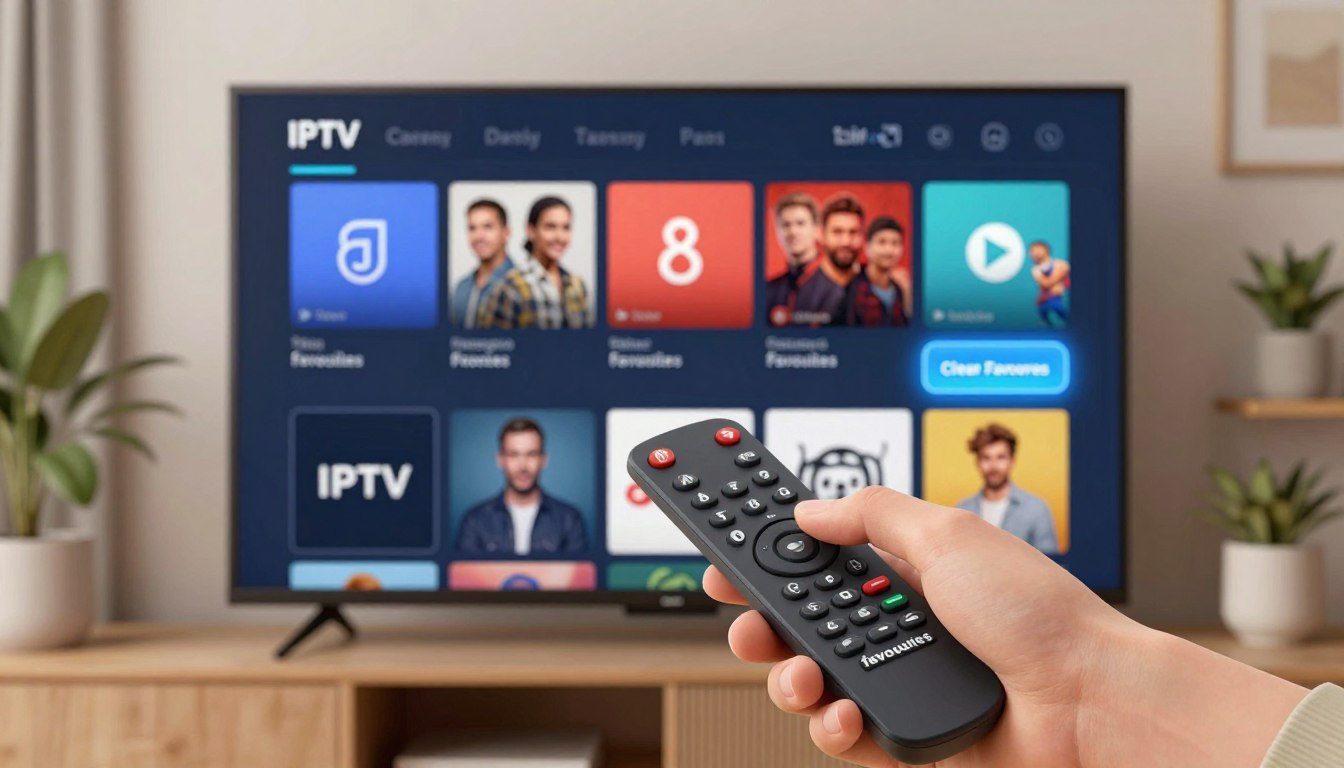
Ever feel overwhelmed by too many digital options? We’ve all scrolled through endless channels, only to find our favorite show. It’s frustrating when watching TV becomes a chore.
Keeping your channel list tidy is key to a great viewing experience. Learning to clear favourites on IPTV helps you navigate faster. A clean interface means less time searching and more time watching what you love.
A messy list can slow down your device. By removing old favourites, you make your viewing smoother. Let’s go through the easy steps to tidy up your digital space now.
Key Takeaways
- A clean channel list makes navigation quicker.
- Getting rid of unnecessary items reduces clutter and frustration.
- Keeping your library organized makes watching TV more enjoyable.
- Regular updates keep your interface fast and responsive.
- Managing your digital content is easy with just a few clicks.
Understanding Your IPTV Interface and Favorites Management
It’s key to know how your IPTV app works to manage your favorites well. Most apps save your channels in a local cache or a cloud-synced profile. Finding out where your data is stored is the first step to learn how to clear favourites on iptv without losing everything.
Many apps use a local database on your device, like an Amazon Fire Stick or an Android TV box. If you clear your app data, you might lose your whole playlist. It’s important to know if your app syncs settings to the cloud or keeps them on your device.
Understanding these technical details helps you clear favorites safely. Exploring your settings menu can prevent accidental deletions. Careful management keeps your favorite channels just the way you like them.
How to Clear Favourites on IPTV Using Popular Apps
Deleting favorites on IPTV can seem tricky at first. But, once you know the menu paths for your app, it’s easy. Each IPTV app manages saved content differently. So, it’s key to find the “Edit” or “Manage” icons in your app.
Removing Channels in TiviMate
TiviMate makes deleting favorites easy. To remove a channel, go to your Favorites group. Highlight the channel you want to delete. Then, long-press the “Select” button to open the context menu. Choose to remove it from your favorites list.
Managing Favorites in IPTV Smarters Pro
In IPTV Smarters Pro, managing favorites is straightforward. Go to the “Live TV” section. Look for the star icon next to the channel name. Clicking this icon again toggles the status and removes the channel from favorites.
Clearing Saved Channels in Perfect Player
Perfect Player has a unique method. Access the “Settings” tab and find the “General” or “Playlist” area. Here, you can manage your channel list or reset favorites by clearing the cache.
Step-by-Step Guide to Resetting Your IPTV Favorites List
Feeling overwhelmed by a messy channel list? It’s time to take back control. A cluttered menu makes it hard to find your favorite shows. By doing an iptv favorite channels reset, you can free up space and make watching easier.
Accessing the Channel Editor Settings
To start cleaning up, find the settings menu in your IPTV app. Most apps have a “Channel Editor” or “Playlist Manager” section. Look for the main settings gear icon or long-press the menu button on your remote.
In this area, you’ll see a list of saved stations. Make sure you’re in the right editing mode before making changes. This helps avoid accidentally deleting channels you want to keep.
Selecting and Removing Individual Channels
Want to remove just a few channels? Manual selection is the best way. Highlight the channel you want to delete and look for “Remove” or “Delete” in the context menu. This way, you can clear iptv favorites list entries one by one.
This method is great for removing old or broken links. It keeps your favorite shows while getting rid of the rest.
Performing a Bulk Reset of Your Favorites
For a complete reset, a bulk action is the fastest way. Many apps have a “Clear All” or “Reset Favorites” button in the editor menu. Choosing to reset iptv favorites this way will clear your list instantly.
Before doing a bulk wipe, think about which method is best for you:
| Method | Best For | Time Required |
|---|---|---|
| Manual Removal | Minor adjustments | Moderate |
| Bulk Reset | Total organization | Very Fast |
| Playlist Sync | Remote management | High |
Remember, a bulk reset is permanent. Make sure you’re ready to start over before you confirm it.
Device-Specific Methods for Managing IPTV Channels
How you use your IPTV app depends on your TV’s hardware. The interface looks similar, but the input method changes. This is key for clearing iptv favorites list settings well.
Clearing Favorites on Amazon Fire TV Stick
Fire TV Stick users rely on their remote’s directional pad. To manage favorites, go to the channel menu and highlight the entry you want to change. Pressing the menu button opens the context menu. There, you can remove the channel from favorites.
Managing Channel Lists on Android TV Boxes
Android TV boxes offer a flexible interface, supporting keyboards or air mice. For removing favorites on iptv, long-press the select button on your remote. This is quicker than navigating through menus.
- Keep your firmware updated to avoid lag.
- Use a wireless mouse if the remote is slow.
- Check if “Edit Mode” needs to be turned on first.
Removing Saved Channels on Smart TVs
Smart TVs with IPTV apps have less power than streaming sticks. The interface might be slower. Be patient when clearing iptv favorites list data. Wait for the screen to refresh after deletion.
If removing favorites on iptv doesn’t work, try restarting the app. Clearing the cache on your Smart TV might help. These steps make managing your channels smoother, no matter your device.
Troubleshooting Common Issues When Deleting Favorites
Managing your channel list should be simple. But sometimes, technical glitches get in the way. When you spend time organizing your content, you expect those changes to stick. Unfortunately, software conflicts can sometimes prevent your updates from saving properly.
Why Your Favorites Keep Reappearing
If you notice that channels you removed keep showing up, the issue is often related to your app cache. Your device might be pulling old data from its temporary storage instead of the updated list. Clearing the cache in your app settings is usually the fastest way to fix this when deleting favorites on iptv.
“Technology is best when it brings people together, but it is even better when it actually listens to your commands.”
Handling Sync Issues Between Devices
Many users access their IPTV service across multiple devices, such as a phone and a living room TV. If your changes do not reflect everywhere, your app might be struggling to sync with the provider’s server. You should try to force a manual refresh or restart the application to ensure the server registers your latest edits.
Check your settings menu for a “Reload Playlist” or “Sync Data” option. This simple step often resolves conflicts that occur when deleting saved channels on iptv across different hardware platforms.
Resolving App Crashes During List Editing
Sometimes, an app might crash while you are in the middle of editing your channel list. This usually happens if the playlist file is too large or if your device is running low on memory. To prevent this, try closing background applications before you start organizing your channels.
- Ensure your app is updated to the latest version.
- Check your internet connection for stability.
- Restart your device to clear active memory.
If the app continues to close unexpectedly, consider removing only a few channels at a time. This reduces the processing load and helps the software save your preferences without interruption.
Best Practices for Organizing Your IPTV Channel Lineup
Turn your messy channel list into a neat hub with smart habits. A clean interface means less scrolling and more fun content. Organize your channels into a personalized library.

Creating Custom Categories for Better Navigation
Most IPTV apps let you make custom folders for channels. Instead of a long list, sort by genre, language, or network. This simple step makes finding your favorite shows quick.
- Group channels by category like “Movies,” “News,” and “Kids.”
- Use color-coded tags if your app supports them.
- Keep your most-watched channels at the top.
Backing Up Your Channel List Before Making Changes
Secure your data before big changes. A backup is your safety net for an iptv favorite channels reset. Export your M3U playlist or save your settings to a cloud or computer.
“An ounce of prevention is worth a pound of cure when managing digital media libraries.”
Regular Maintenance of Your IPTV Favorites
Stay consistent for a great viewing experience. Spend a few minutes each month cleaning iptv favorites. Remove dead links or channels you don’t watch. This keeps your interface fast and smooth.
A tidy list is a functional one. Remove unnecessary entries to save device resources. Stay organized for a better movie night.
Advanced Tips for Power Users
Managing channels from a computer is more precise than using TV apps. With hundreds of channels, using a remote is slow and hard. Moving to a desktop lets you quickly iptv favorite channels removal without TV app limits.
Using M3U Editor Tools for Remote Management
M3U editors are software for organizing streaming links easily. They let you upload playlists, view channels in a grid, and toggle favorites with one click. This is the best way to reset iptv favorites if your list is messy or old.
These editors often have cloud-sync features. This means your changes are synced to your device without errors. Just save your edits in the editor, and your IPTV player will update with the new lineup.
Editing Playlist Files Directly on Your Computer
Editing M3U text files directly is a hands-on option. Open your playlist in a text editor like Notepad++ or TextEdit. Here, you can delete lines or reorder categories by hand. This gives you full control over your iptv favorite channels removal.
After editing, save the file and upload it to your hosting service or local storage. This method is reliable for resetting favorites on many devices at once. It avoids app limits that can cause frustration.
| Method | Ease of Use | Control Level |
|---|---|---|
| App Interface | High | Low |
| M3U Editor | Medium | High |
| Manual Text Edit | Low | Maximum |
Safety and Security While Modifying IPTV Settings
When you start cleaning iptv favorites, keeping your data safe is key. Many users ignore the dangers of changing their streaming settings. But, it’s important to stay careful to avoid risks.
By following simple security steps, you can safely remove iptv favorite channels. This way, you won’t let anyone get into your account without permission.

Protecting Your IPTV Credentials
Your login details, like M3U playlist URLs and Xtream Codes, are very important. Never share them online or with unknown groups. If you think someone might have your info, change your password right away through your provider’s site.
“Security is not a product, but a process of constant vigilance and smart habits.”
— Anonymous
Make sure you’re always logging into your account securely. Don’t use public Wi-Fi when you’re iptv favorite channels removal. It’s not safe. A good VPN can help protect you while you work on your lists.
Avoiding Third-Party Tools That Compromise Privacy
The internet has many unofficial tools that claim to make cleaning iptv favorites easy. But, some of these tools might steal your data or harm your device. Stick to trusted apps with clear privacy policies.
| Security Practice | Recommended Action | Risk Level |
|---|---|---|
| Credential Storage | Use a password manager | Low |
| Tool Selection | Use official app settings | Low |
| Public Wi-Fi | Avoid for modifications | High |
| Unknown Editors | Do not install | Critical |
Before you install any channel management software, check what others say about it. Be wary of tools that ask for too much info, like your contacts or location. Protecting your privacy is the best way to enjoy streaming without trouble.
Conclusion
Controlling your streaming library changes how you watch your favorite shows. A clean interface saves time and cuts down on frustration. No more endless scrolling through unwanted channels.
You now know how to make your viewing space your own on platforms like TiviMate or IPTV Smarters Pro. Making small changes to your channel list makes watching on your Amazon Fire TV Stick or Android TV much better.
Keeping your settings up to date makes your setup fast and easy to use. Spending a few minutes organizing your favorites keeps your digital space neat. It’s ready for your next movie night.
Remember, keeping your login details safe is key to your streaming experience. Secure habits protect your account while you enjoy top-notch shows from all over.
What changes will you make to your channel list today? Share your favorite tips with other streamers. Help them create a better viewing experience.
FAQ
Why is it important to learn how to clear favourites on iptv regularly?
Keeping your channel list clean is key for a better viewing experience. It helps reduce clutter, making it easier to find what you want. A tidy app means faster navigation and less scrolling.
What is the fastest way for deleting favorites on iptv using TiviMate?
In TiviMate, go to the channel, open the side menu, and choose “Remove from favorites.” For multiple channels, use the Channel Editor in settings for a quicker process.
How do I manage removing favorites on iptv if I use IPTV Smarters Pro?
For IPTV Smarters Pro, go to the Favorites category. Long-press on a channel to delete it. This is the simplest way to remove channels in this app.
Can I perform a full iptv favorite channels reset at once?
Yes! Clear your favorites list entirely by accessing “Settings” or “GUI Config” in apps like Perfect Player. Look for “Clear Favorites” or “Reset Playlist” to start fresh.
Why do my channels reappear even after I reset iptv favorites?
Channels might come back due to sync issues or cached data. Clear your app cache in Android TV or Amazon Fire TV Stick settings. This often fixes the problem.
Is the process for removing favorites on iptv different on an Amazon Fire TV Stick?
The steps are similar, but use the Fire TV remote. Press the “Options” button (three horizontal lines) to manage your favorites.
Is it safe to use third-party M3U editors for an iptv favorite channels removal?
Tools like M3U4U are powerful for managing your list. But, be careful with your IPTV credentials. Only use trusted tools to avoid security risks.
Should I back up my settings before I clear iptv favorites list?
Yes, definitely. Use the “Backup” feature in your app (like TiviMate or OTT Navigator) before resetting. This way, you can restore your settings if needed.
How can I keep my IPTV interface organized after cleaning iptv favorites?
Organize your favorites by creating custom categories. Group channels by genre, like “Live Sports” or “Movies.” This keeps your app tidy and easy to use.